Using OM Workspace batch processing files (.OES)
OES files are OM Workspace presets that apply a saved set of image adjustments — including Color Profile / Color Recipe or Monochrome Creator settings — to any raw (.ORF) file.
An OES file can’t be loaded directly into the camera. To get a recipe onto the camera itself, see the JPG workflow.
Download an OES file
Open a recipe on this site.
Find the OM Workspace Batch Processing File link and click it.
Save the .OES file somewhere easy to find (e.g. Downloads).
Load the OES file in OM Workspace
Menu names may vary slightly by version.
Open OM Workspace.
Select a raw photo (.ORF) or group of photos.
Click the floppy disk icon in the lower right — it shows Save Batch Processing File and Load Batch Processing File.
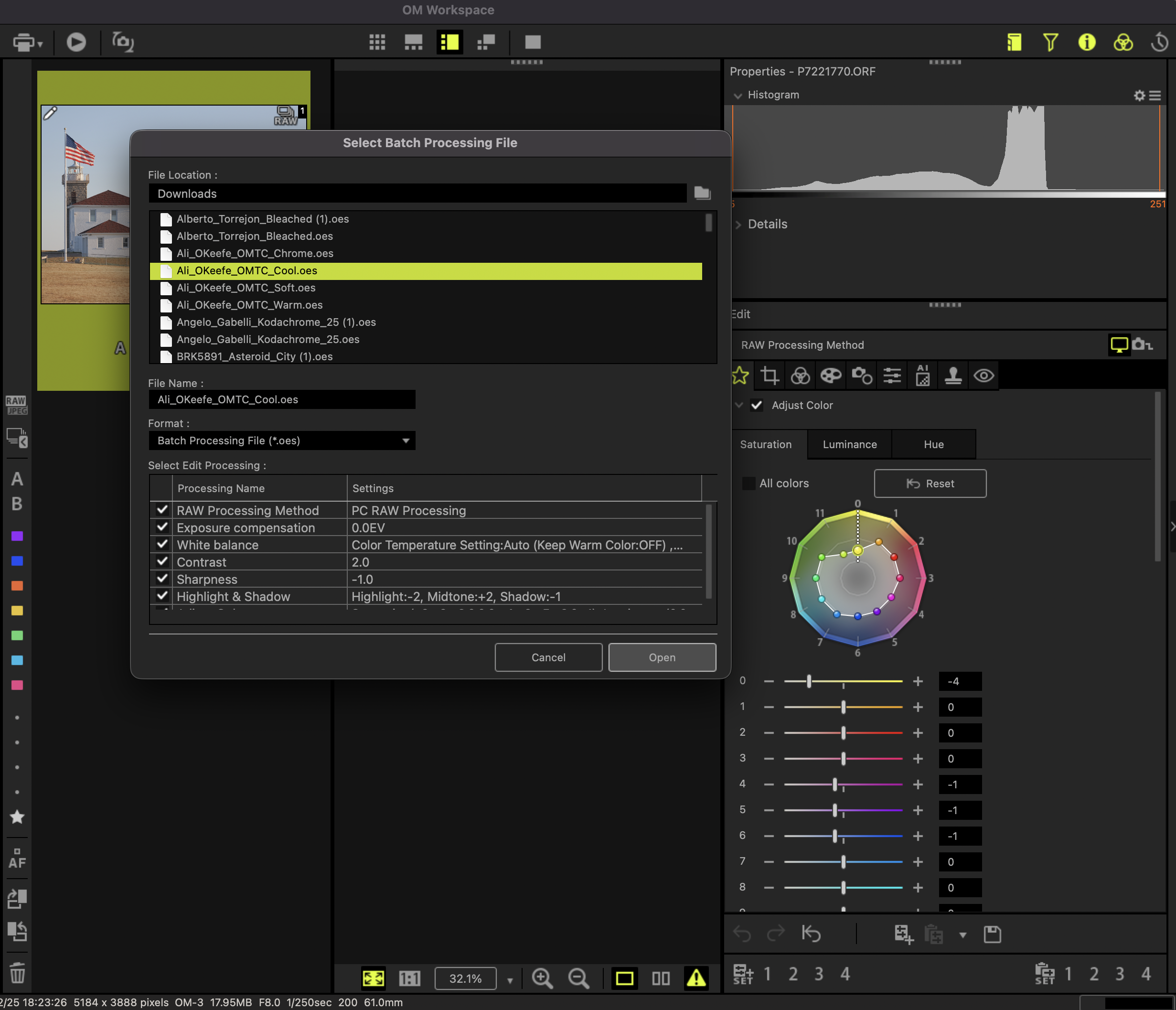
Choose Load Batch Processing File and select the downloaded OES file.
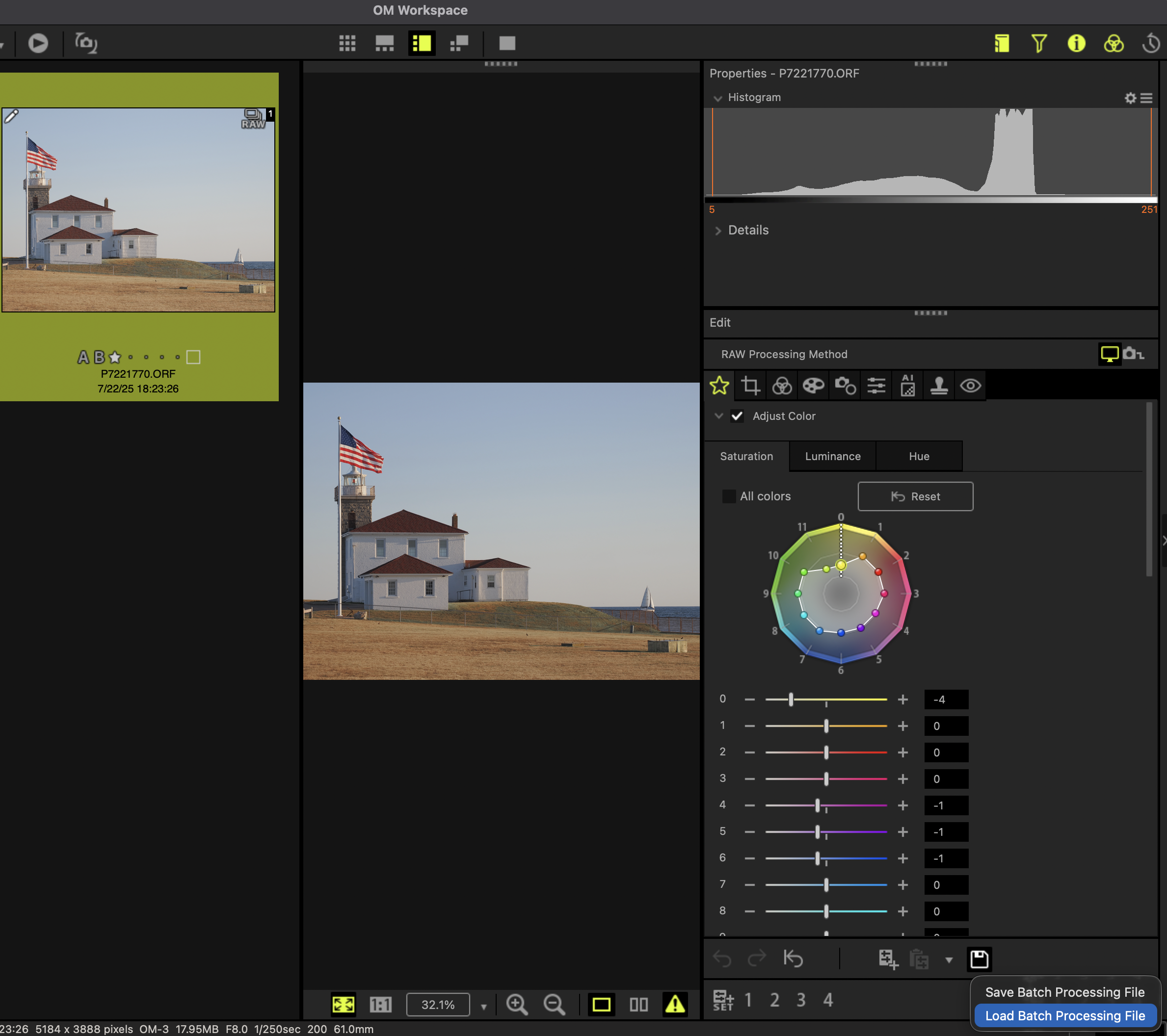
The settings are now applied and visible in the Edit pane.