Guide
Load a recipe into your camera using a JPG image
OM System cameras store recipe settings in the EXIF data of straight-out-of-camera JPGs. OM Workspace can read that data and write the recipe directly to your camera — no manual entry required.
Note: This workflow does not transfer white balance settings. You’ll need to set those manually on the camera after loading.
1
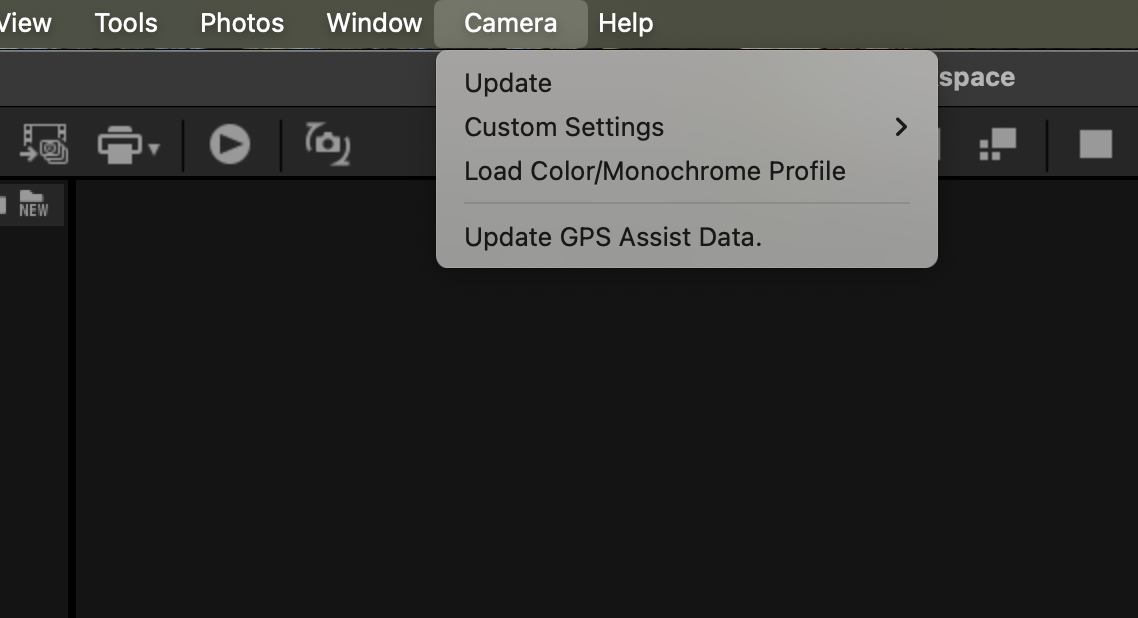
In OM Workspace, open the Camera menu and select Load Color/Monochrome Profile.
2
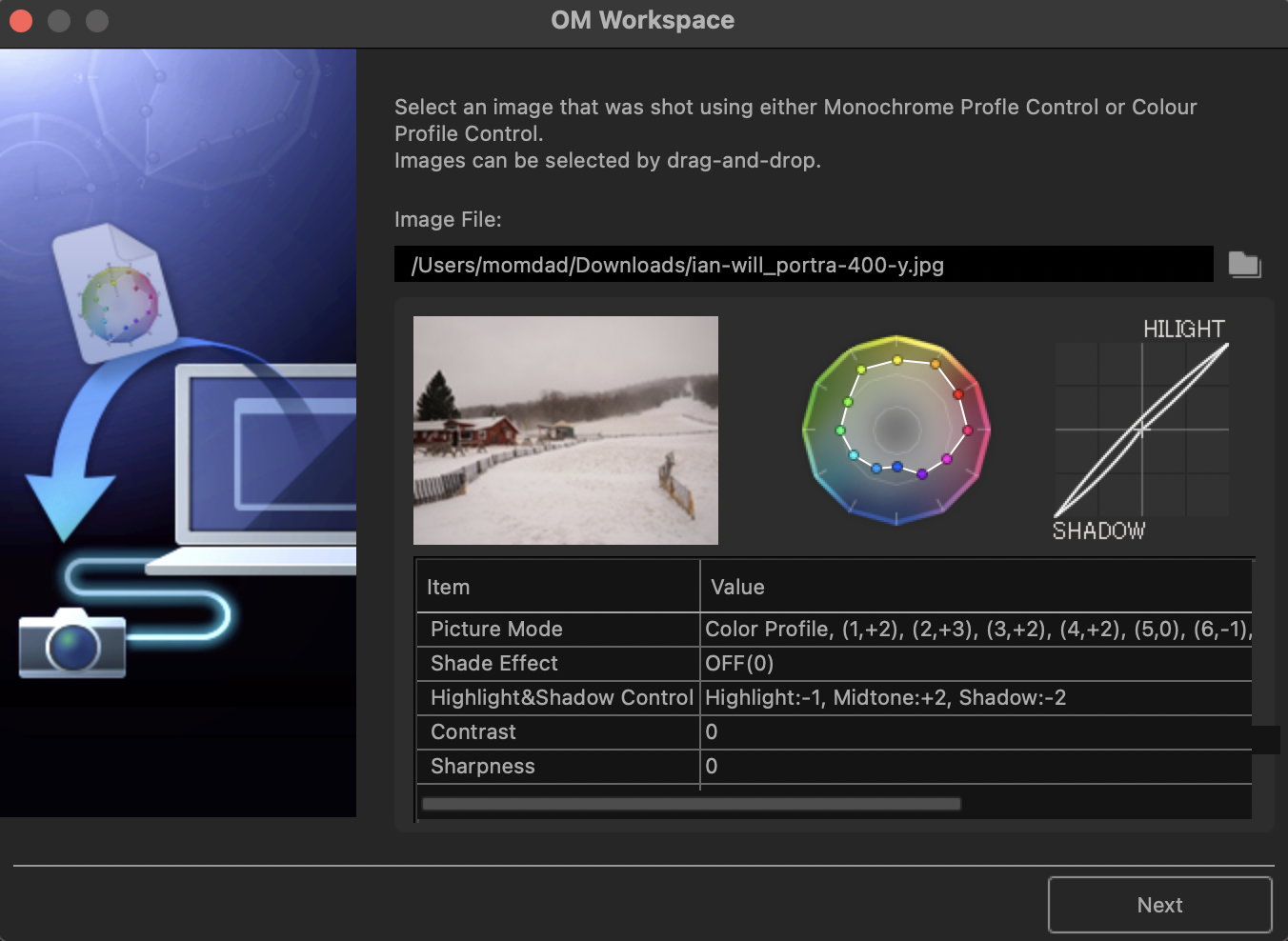
Select the recipe JPG file you downloaded from this site.
3
Click Next.
4
When prompted, connect your camera via USB and select MTP mode on the camera.
It can help to wait until OM Workspace prompts you before plugging in — connecting too early sometimes causes it to hang.
5
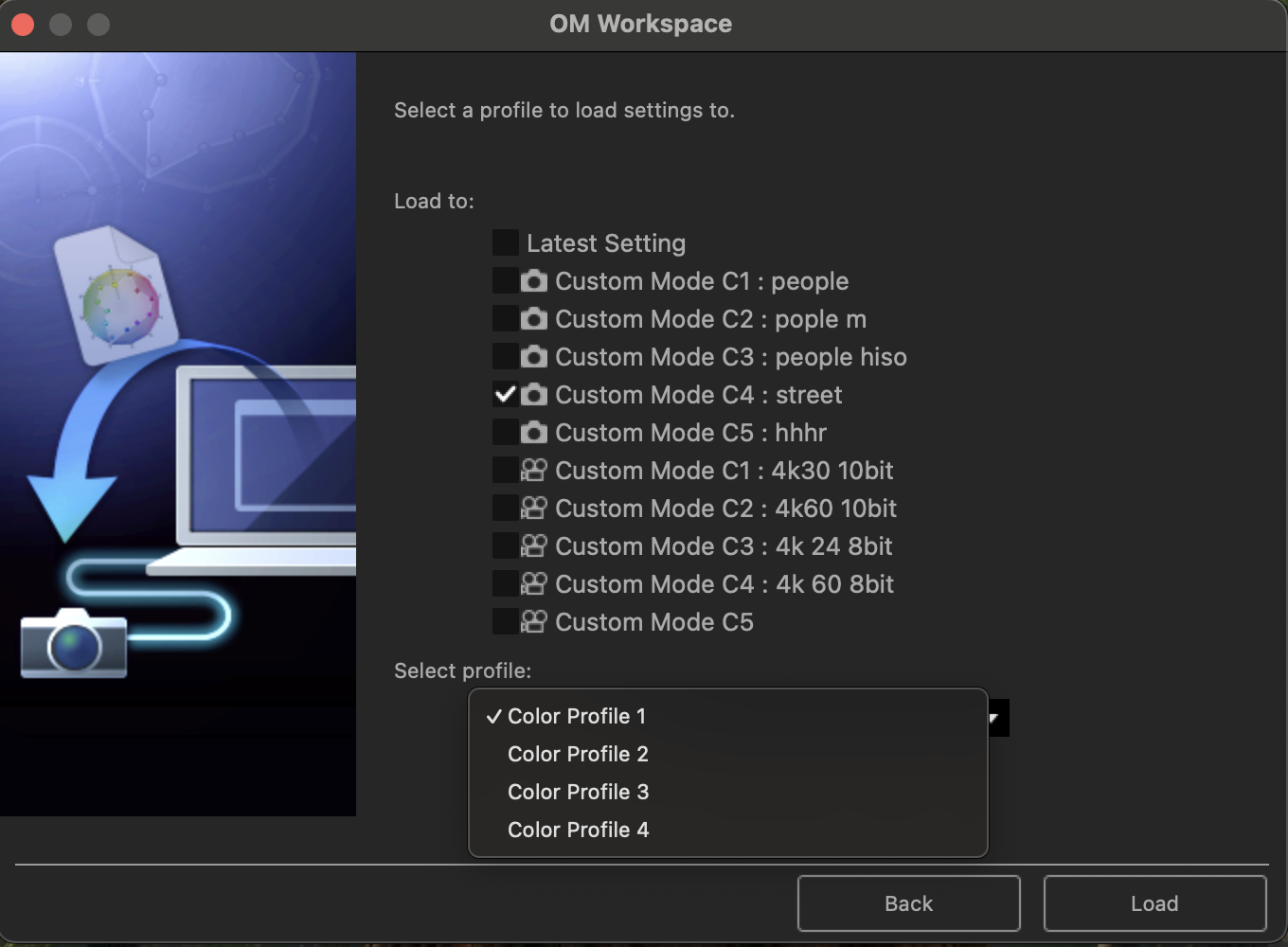
Select which Custom Mode slot(s) and Color Profile slot to load the recipe into.
6
Click Load.